To add a clip, you paste a YouTube video's URL into sukipp. Here's how to find a video, copy its URL, and come back to sukipp.
The steps at a glance
- On your list, select Add clip.
- Enter what you're looking for in the URL field, then select Search YouTube. The YouTube search results open in a new tab.
- Copy the URL of the video you find (see the steps below).
- Go back to the sukipp tab and select Paste. Once the video loads, set a section and add the clip.
Copy the video's URL
For any video, the surest way is to open the video and copy the link from Share on the video page. Menus on lists such as search results may not have Share.
On a computer
- Open the video.
- Select Share (the arrow button) below the video.

- In the window that opens, select Copy.

For Shorts, select Share in the column of buttons to the right of the video.
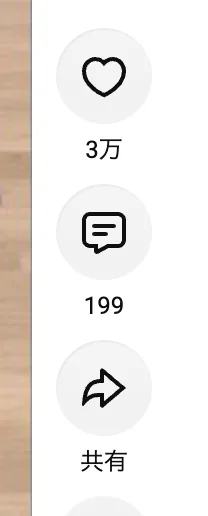
On a computer, you can also copy the URL from your browser's address bar.
In the YouTube app
- Open the video.
- Tap Share. It's below the video for regular videos, and on the right for Shorts.
- In the menu that slides up, tap Copy.
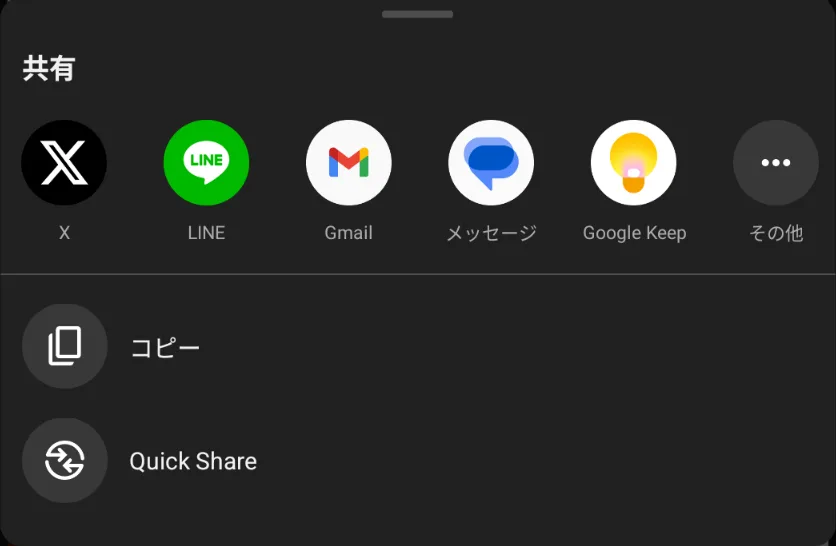
In the app, you can also choose Share from the "︙" menu on a list. The menu looks a little different depending on your phone.
In a phone browser
- Open the video.
- Tap Share to open your phone's share menu.
- Choose Copy.
When you watch YouTube in a browser, the "︙" menu on a list doesn't have Share. Open the video first, then share it.
If something goes wrong
- Nothing appears when you select Paste: Your browser may be blocking access to the clipboard. Press and hold the URL field (Ctrl+V / ⌘+V on a computer) to paste, then select Load video.
- You see "Enter a YouTube video URL.": You may have copied the URL of a channel or a list of videos. Open the video and copy the link from Share again. sukipp reads URLs for videos (watch, youtu.be), Shorts (shorts), and live streams (live).